Request Editor
The request editor is the central workspace for composing and sending API requests. It opens when you select an operation from the service tree.
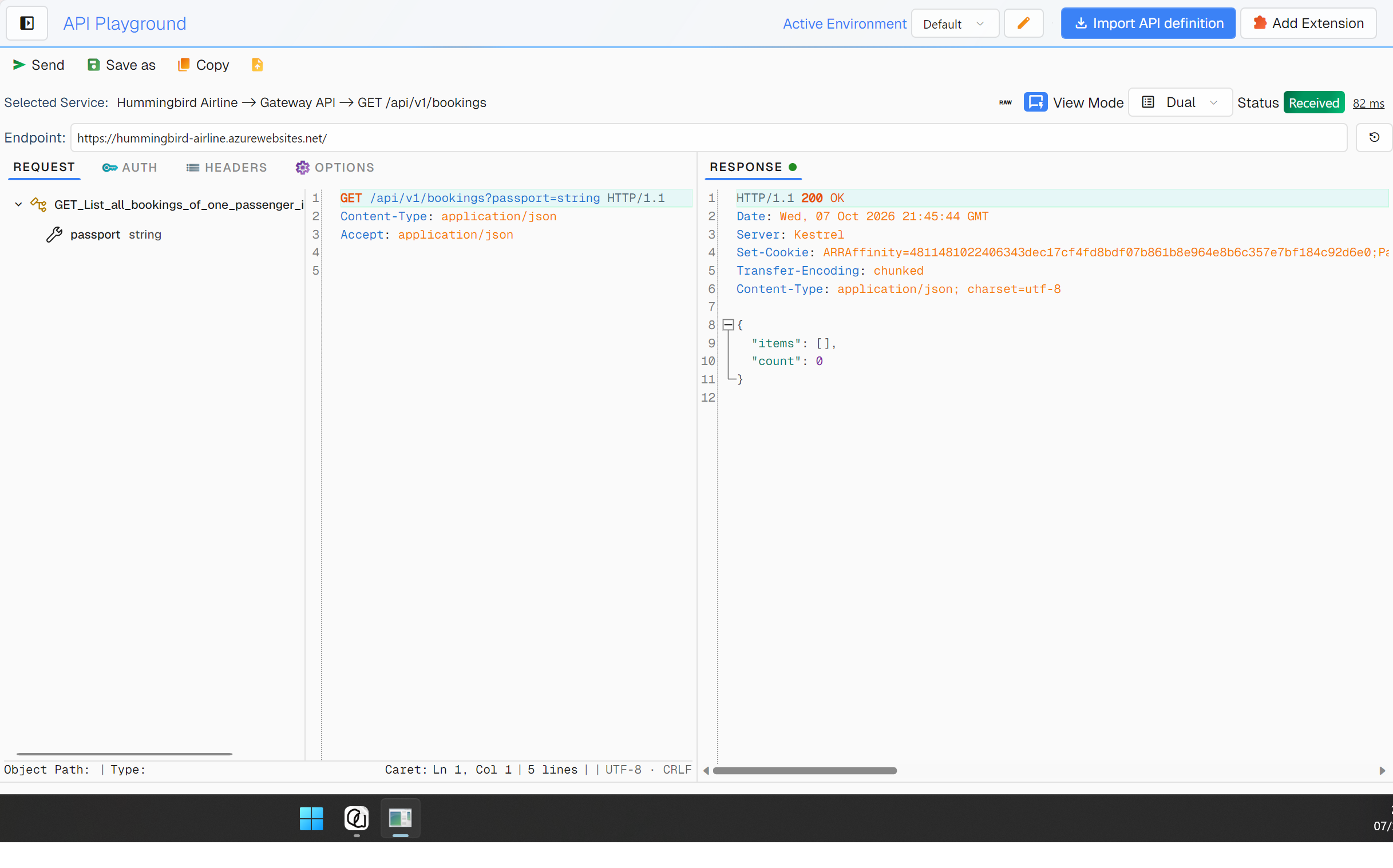
Toolbar
The toolbar at the top of the request editor provides quick actions.
| Button | Action |
|---|---|
| Send | Send the current request. Disabled while a streaming call is in flight. |
| Copy | Opens a menu with as cURL, as JavaScript Fetch, as HTTPie, and as automation test step. |
| Import cURL | Opens the Import cURL window to paste a cURL command or a raw HTTP request and load it into the editor. |
| Save as | Keeps the request on screen under a name you choose, as a child of the operation. Playground only — a test step already has its own name and lifecycle. |
There is no Save button: selecting another node or sending is what saves the request you are looking at. Save as is the one way to keep a second version of it under a name of your own — see Saving & Reusing Requests.
A request size indicator (tooltip: "Request size (headers + body)") is shown to the right of the toolbar buttons when the request has content.
In automation mode the toolbar is hidden. Instead, a Select Service button lets you pick the service/operation the step targets.
Endpoint Bar
Below the toolbar, the Endpoint: label shows a read-only/editable URL box and a Restore Default URL button. The URL box is read-only when a non-default test environment is active; the Restore Default URL button resets the endpoint to the imported specification's default (RequestEditorViewModel.TestEnvironment.GetEndpoint).
Top-Right Controls
On the right side of the editor header:
- RAW — opens the raw HTTP request message in a detail window (visible only when raw request text is available).
- Response panel toggle — shows or hides the response panel (visible once a response has been received).
- View Mode — switches the editor display (see below; available for HTTP-based services only).
- Status — a color-coded tag showing the last request status (tooltip shows the error message on failure).
- Elapsed time — clickable; opens the timing breakdown popup when timing data is available.
Request Tabs
The left column of the editor uses a tab control with four tabs.
Request Tab
The main tab for composing the request. The content adapts to the operation's protocol:
- REST / HTTP — An object tree/text editor for the request body. When the Http view mode is active, this tab is replaced by the HTTP Message editor (method, path, headers, and body in a single form).
- SOAP — SOAP action and envelope editor (with SOAP version and MTOM options in the Options tab).
- GraphQL — query/mutation editor with a variables section.
- Kafka (producer) — message editor with schema binding and a configurable message transformer (Options tab).
- gRPC (unary) — protobuf message fields via the object editor, plus call metadata in the Options tab.
- gRPC streaming / Kafka consumer — the entire request/response area is replaced by the dedicated Streaming Editor, which shows a split request/response layout and a streaming frame grid. This happens automatically when the selected operation is a server-, client-, or bidirectional-streaming gRPC RPC, or a Kafka consumer with an active stream.
View Modes
For HTTP-based services, switch the display using the View Mode selector (top-right):
| Mode | Description |
|---|---|
| Dual | Object hierarchy (tree) on top, raw text message below — both stay in sync. |
| Tree | Object hierarchy only. Best for typed/structured data. |
| Text | Raw text message only, with syntax highlighting. |
| Http | Single HTTP Message editor showing method, path, headers, and body together. Hides the global URL bar and Headers tab (the HTTP Message editor provides its own). |
The default view mode can be configured in Settings → Application → Default Editing Mode (RequestEditorSettings.DefaultViewMode).
Object Editor (Tree Mode)
The object editor provides a hierarchical tree view of the request body schema:
- Expand/collapse nested objects and arrays
- Edit primitive values (string, number, boolean, enum) inline
- Add/remove array items
- Context menu for advanced actions (initialize subtypes, copy path, etc.)
- Type information and descriptions from the imported schema
- Filter nodes by name — press
Ctrl+Shift+Fto show a filter box at the top of the tree; typing narrows the tree to matching nodes (ancestors are auto-expanded). PressCtrl+Shift+Fagain (with an empty filter) orEscto close it and reset the view. - Keyboard shortcuts —
Ctrl+Ccopies the selected node's value or path to the clipboard;Ctrl+Shift+Eexpands all nodes;Ctrl+Shift+Ccollapses all nodes;Deleteremoves the selected array item (not the root).
See Object Editor for full details.
Authentication Tab
Configure how the request authenticates to the target service. Authentication is managed through credentials rather than inline fields alone:
- Credential — a dropdown listing the credential profiles defined for the current test environment (e.g. Username & Password, Token, OAuth2), plus two synthetic entries:
- inline ("Manual") — configure the auth mode and credentials directly on this request.
- (empty / Anonymous) — no authentication. A search icon button (tooltip: "Manage authentication credentials") opens the environment credential manager.
- When a named profile is selected, a read-only summary shows which credential is in use (e.g.
Username: joh***,Token: eyJh***, orOAuth2 — token valid until 12:00:00). - With inline (Manual) selected, the Authentication Mode: dropdown becomes available (Basic, Bearer Token, OAuth 2.0, etc.) along with the inline credential fields. A Reset to default values button restores the per-request defaults from the imported specification.
- Use client certificate (mTLS) — a checkbox that reveals a Client Certificate picker (private key / certificate from file or system store). This applies across protocols.
When a named profile is selected the auth mode is derived automatically from the credential type (Username & Password → Basic, Token → Bearer, OAuth2 → OAuth 2.0). For Kafka the credential profile and SASL settings are configured in the Options tab instead.
The Authentication tab header shows an attention badge whenever authentication is active (a named profile is selected, or Manual mode is non-anonymous).
See Authentication Guide for detailed configuration of each mode and credential profile.
Headers Tab
A data grid for managing HTTP headers:
- Add, edit, and remove headers
- Pre-populated headers from the imported specification
- Common headers (Content-Type, Accept, Authorization) are listed first
- Header names and values accept
${VariableName}. AnAuthorizationvalue applied from a credential profile is sent as stored — variables are deliberately not substituted inside credentials
The Headers tab is hidden for gRPC and Kafka operations, and while the Http view mode is active (the HTTP Message editor provides its own Headers section). For gRPC, use the Metadata table in the Options tab instead.
Options Tab
Protocol-specific settings:
HTTP Options:
- Content-Type / Accept header values
- URL encoding options
SOAP Options:
- SOAP version (1.1 / 1.2)
- MTOM encoding toggle
Kafka Options:
- Security protocol (Plaintext, Ssl, SaslPlaintext, SaslSsl)
- SASL mechanism (Plain, SCRAM-SHA-256, SCRAM-SHA-512, OAUTHBEARER, GSSAPI)
- Message transformer selection and parameters
- Partition key configuration
gRPC Options:
- Deadline (ms) — call timeout
- Max Response Size (bytes) — incoming message size limit
- Use TLS — enable/disable transport security
- Metadata — key-value pairs for gRPC call metadata (equivalent to HTTP headers)
Response Panel
The response appears in a Response tab on the right side of the editor (use the response-panel toggle in the top-right to show/hide it). It provides:
- Status code tag (color-coded: green for 2xx, yellow for 3xx, red for 4xx/5xx)
- Elapsed time in milliseconds (clickable for the timing breakdown)
- Timing breakdown popup: Preparation Time, Time to First Byte, Receive Time, and Total Time
- Response body with syntax highlighting and a context menu for XPath/JsonPath operations
See Response Viewer for details.
Checks Strip
Along the bottom of the editor: MAPPING · ASSERTIONS · EXTRACTION · DIAGNOSTICS. It starts collapsed to those four headers, so the object tree and the raw message keep the room. Double-tap the strip to open or collapse it, drag its top edge to resize; whichever you last did is what the next request opens with. The headers carry a count of what is configured, and turn it red when something failed — so a collapsed strip still tells you there is a problem.
One send runs the whole strip in order: fill → send → check → extract.
| Tab | What it does |
|---|---|
| Mapping | Fills a field of the request from a value or a ${variable}. Add opens a rule at the field selected in the object tree, with that field's current value already in it; right-click any node for Add mapping rule here. |
| Assertions | Checks what came back: status code, text, a JsonPath or XPath into the body, or an object path into the compiled response. Each row is one sentence — JsonPath · response body · $.token = abc123 — and a check reads the response only: what you typed is not a finding, and the strip already shows the request with the filling applied. Edit on a row opens the full assertion editor, the same window a test step uses, which is where its parameters are set. |
| Extraction | Takes a value out of the response into a variable of this session, and shows the path, the variable name and the value it found. Ticking Environment on a row writes that value into the selected environment as well, so it is still there after Studio restarts. |
| Diagnostics | One line per thing that ran, in order — each rule applied or refused, each check with what it actually found, each extraction. |
Each tab has its own Evaluate button, so a rule or a check can be re-run against the last response without sending again.
A request that cannot be filled is not sent. A rule whose path or variable does not resolve stops the send and says which one, because a half-filled body looks exactly like a request you meant to send.
"Cannot check" is not a failure. A check that could not be made at all — the operation declares no response model, the path is not a member of it, the kind needs a run history a single request does not have — is reported in grey with the reason, because it has an easy way out. Red means the value was read and it differs.
The variables a rule or a check can reference are the selected environment plus what this session
extracted. Typing ${ in a value lists them; right-click for Insert variable… to browse them. Extracted
values live in the session by default: they are gone when Studio restarts, while the rules that produced them
are saved.
Environment on an extraction row is the one way the playground writes into your environment. The value is stored as a Secret variable — the only type encrypted in the workspace file and behind the export password — and if a variable of that name already exists its value is replaced. A row that found nothing writes nothing, so a response that changed shape cannot blank out a variable you typed yourself. Every keep, and every reason nothing was kept, is written to the Diagnostics tab.
These checks are the same engine Test Automation runs, not a second implementation — a check says the same thing here as it does on a step.
Saving Requests
An operation holds its own request, and any number you named: selecting the operation loads its own, selecting a child node loads the one you named. Moving to another node or sending is what saves. There is no Save button — Save as is a choice, not an event, and nothing is named for you.
Each saved request carries the serialized message, the URL template, the last response text, the protocol options block (authentication, mTLS certificates, retries, headers) and the rules, checks and extractions you configured. Your view-mode preference is not part of it — reopening an operation rebuilds the object tree from the request text and the operation's schema.
See Saving & Reusing Requests for what a saved request holds and when it is written.
Keyboard Shortcuts
The request editor binds no keyboard shortcuts of its own — sending and saving are button actions. The raw text areas keep the standard undo and redo keys of the text editor control (Ctrl+Z, Ctrl+Y).