Message History
Every request sent and response received in Aethrix Studio is recorded in the Message History. You can browse past messages and inspect request/response details.
Accessing Message History
Open Message History from the main navigation sidebar (clock icon). The standalone view shows a Message History header with a Refresh button.
The History button that was previously embedded in the API Playground toolbar has been removed, and the onboarding "View request history" tile is no longer shown. Use the navigation sidebar to open Message History.
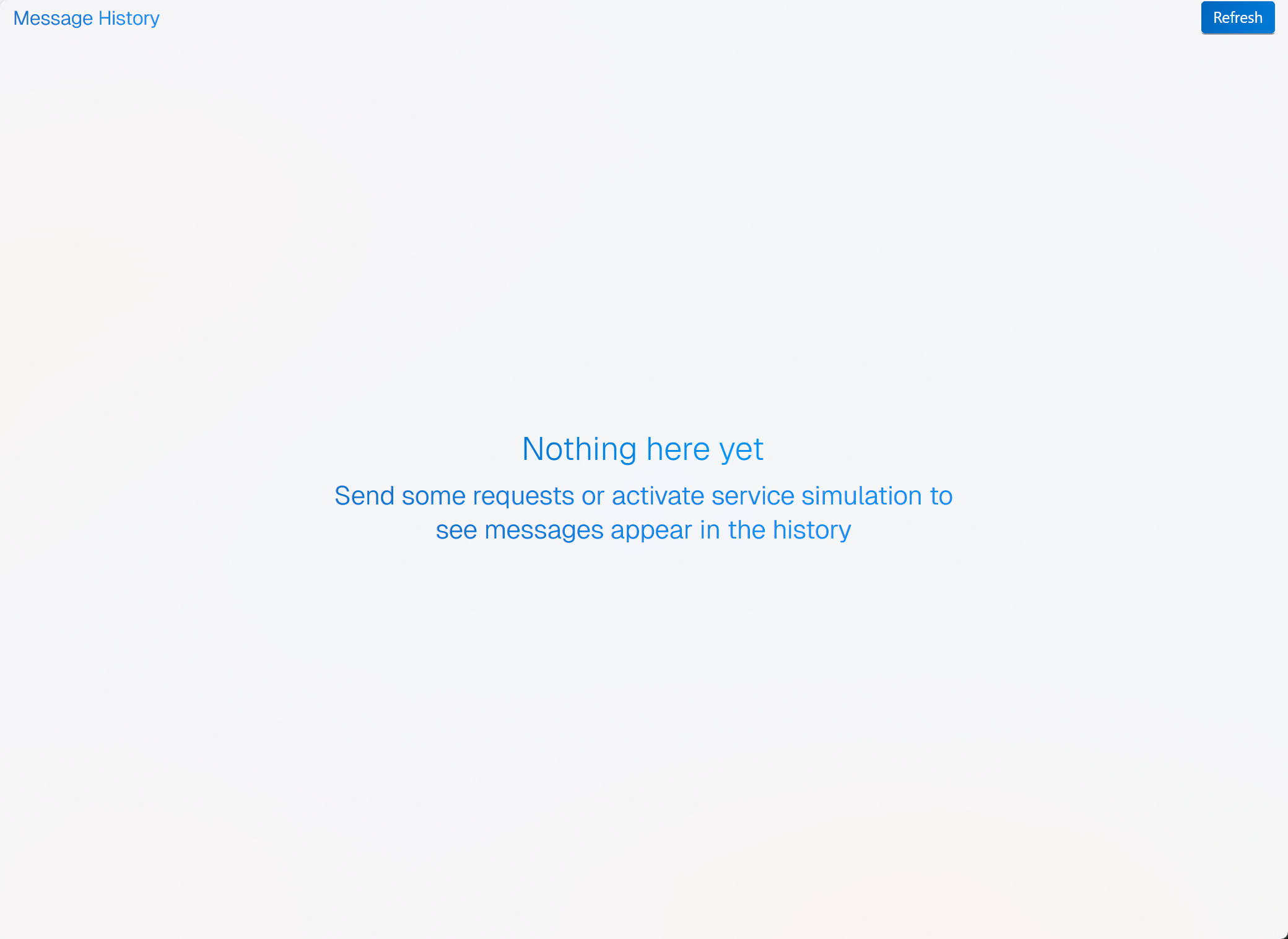
Empty State
When there are no messages yet, the view shows a cover screen:
- Nothing here yet
- Send some requests or activate service simulation to see messages appear in the history
Layout
| Zone | Position | Purpose |
|---|---|---|
| Message List | Left panel | Chronological list of all messages with direction/security icons and titles |
| Detail Panel | Right panel | Detailed view of the selected message — URI, timing, request, response, error, processing log |
Message List
Each entry in the message list shows:
| Element | Description |
|---|---|
| Direction Icon | Outgoing (sent) or Incoming (received) message |
| Security Indicator | Secured (lock) or Unsecured (warning) |
| Authenticated Indicator | Shown when the message was authenticated |
| Title | A short description / label of the message |
| Date (on hover) | A date badge appears when you hover over an entry |
The list is newest-first (the most recent message is at the top). Messages persist across the session within the workspace and new messages are inserted at the top as they arrive; click Refresh to rebuild the list from the current message queue.
Detail Panel
Selecting a message displays its full details in the right panel. The header shows a read-only Uri field and an elapsed-time link that opens a timing-breakdown flyout (Prep:, TTFB:, Receive:, Total:) when timing data is available.
Request Tab
- HTTP method and full URL
- Request headers
- Request body (with syntax highlighting)
Response Tab
- HTTP status code
- Response headers
- Response body (with syntax highlighting)
- Shows "(No response)" when no response was recorded
Error Tab
- Error message and stack trace (if the request failed)
Processing Log Tab
- A step-by-step table (Item, Value, Detail) of what happened while sending/receiving, with a status glyph per step.
- Shows "No processing log available" when empty. The log is populated live when a request is sent and is not persisted across sessions — send a new request to see the breakdown.
Limits
Message history is subject to configurable limits (Settings → General):
| Setting | Default | Description |
|---|---|---|
| Max Historized messages | 300 | Maximum number of messages stored in the history within a workspace |
| Max Message Size | 10 MB | Maximum size of requests or responses handled by the application |
When the history limit is reached, the oldest messages are automatically removed.
Clearing History
There is no in-app "clear history" button. History is not session-scoped: the queue is written to the workspace data folder and reloaded on the next start, so what you see today includes earlier runs. It is trimmed automatically once it exceeds Max Historized messages, and the Auto Clean setting (Settings → General) clears temporary folders when the application shuts down — it does not clear message history. Two things the panel does not do, whatever a promise elsewhere says: there is no re-send control that loads a past entry back into the editor and fires it, and there is no diff between two recorded responses. To run something again, read it here and re-enter it in the request editor — the entry is a record, not a starting point.