Creating Your First Automated Test
This guide walks you through creating a complete automated test from scratch.
Prerequisites
- Aethrix Studio installed
- An API imported into the workspace (see Importing API Specifications)
- An environment configured (see Environments & Variables)
Step 1: Create a New Project
- Open the Test Automation view from the left navigation.
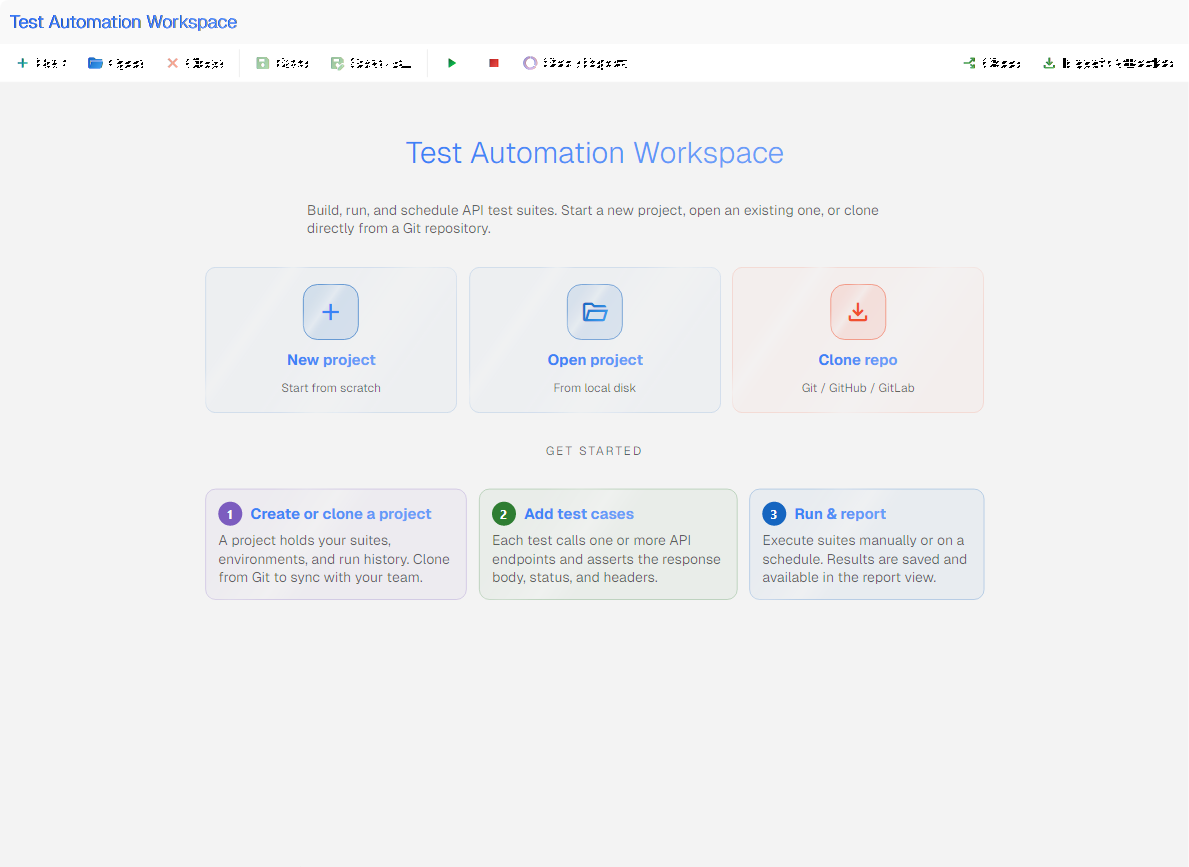
- Click add New in the toolbar.
- In the New Automation Project dialog, choose a Location (an empty directory) and a Project Name.
- Click Create. The project opens with an empty tree.
tip
If you already have the API collection, you can instead click Import Collection (Postman / Bruno / Insomnia) or Clone to start from a Git repository.
Step 2: Create a Test Suite
- Right-click the project node in the tree.
- Select Append Test Suite.
- Give it a descriptive name (e.g., "User API Tests").
Use Append Parallel Test Suite if you want its test cases to run concurrently. To generate attack instances from a template request instead of writing steps by hand, use Add Security Test Case... (see Security Testing).
Step 3: Create a Test Case
- Right-click the test suite.
- Select Add Test Case.
- The test case opens in the detail panel.
Step 4: Add a Send Request Step
- Right-click the test case and select Add Test Step → Send Request.
- Choose the API operation from the request editor — this pre-fills the URL, method, and body schema.
- Configure the request body in the object editor.
- Configure headers and authentication in their respective tabs.
Step 5: Add an Assertion
Send Request steps have built-in assertions, but you can also add explicit assertion steps:
- Right-click the test case and select Add Test Step → Assert.
- Choose the assertion type (e.g., HTTP Status Code).
- Configure the expected value (e.g., status code equals
200). - Multiple assertions can be added to a single step.
Common Assertion Types
| Assertion | Use Case |
|---|---|
| HTTP Status Code | Verify the response status (200, 201, 404, etc.) |
| JSON Path | Check a specific value in a JSON response body |
| XPath | Check a specific value in an XML/SOAP response body |
| HTTP Header | Verify a response header value |
| Contains | Check that the response body contains a string |
| Variable | Compare a variable value against an expected value |
Step 6: Run the Test
- Select the test case, suite, or project in the tree.
- Click play_arrow Run in the toolbar. The button label reflects the selected item (Run Project, Run Test Suite, Run Test Case, or Run Test Step).
- Watch the progress in the diagnostics panel and the progress bar.
- Each step turns green (passed) or red (failed).
Step 7: View the Report
- After execution, click description Show Report in the toolbar (or Show Report from the project's context menu).
- The report shows:
- Pass/fail/skipped counts
- Per-step timing and status
- Request and response details for each Send Request step
- Error messages for failed steps
Complete Example: Testing a REST API
Here is a minimal test case that verifies a GET endpoint:
Test Suite: "Petstore API Tests"
  └── Test Case: "Find pet by ID returns 200"
        ├── Step 1: Send Request
        │     Operation: GET /pets/{id}
        │     URL Params: id = 1
        │
        ├── Step 2: Assert
        │     Type: HTTP Status Code
        │     Expected: 200
        │
        └── Step 3: Assert
              Type: JSON Path
              Path: $.name
              Expected: "doggie"
Using Variables
To make the test reusable across environments, use variables:
- Define a variable in the environment (e.g.,
petId = 1) via the Environment Management view. - Reference it in the step using the
${petId}syntax in the URL parameter. - Switch environments to test with different data.
note
Aethrix uses the ${VariableName} syntax for variable substitution (not {{...}}).