Import API Specification
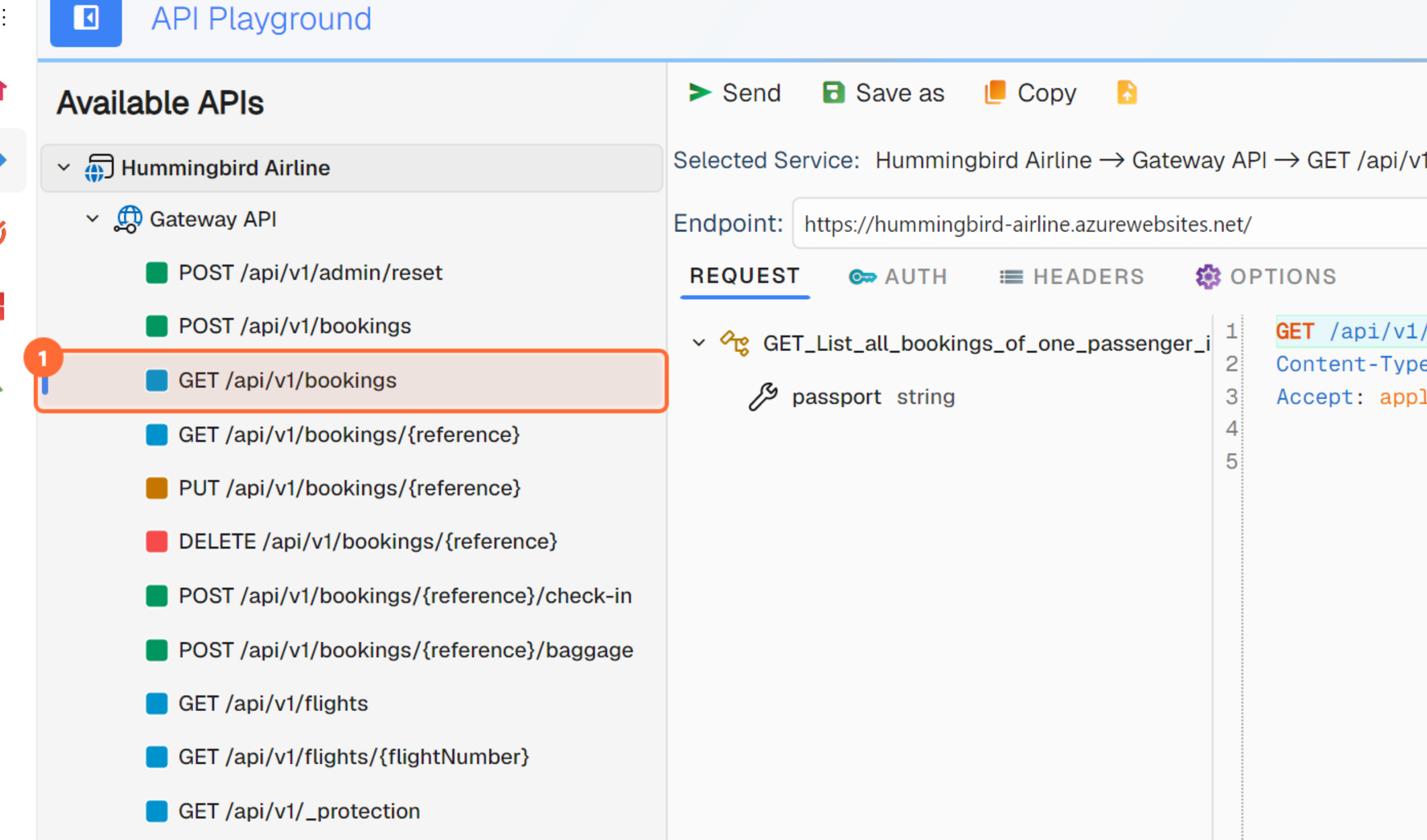
Import API is used to import API definitions from supported service description formats into Aethrix Studio. Once imported, the service appears in the service tree with all available operations, each marked with an icon based on their HTTP method or protocol type. This is the primary way to start testing a new API.
Supported Formats
| Format | Protocol | File Extensions |
|---|---|---|
| OpenAPI / Swagger | REST (HTTP) | .json, .yaml, .yml |
| WSDL | SOAP | .wsdl |
| CSDL / EDMX | OData | .xml, .csdl, .edmx |
| Schema Registry | Kafka (Avro, JSON Schema, Protobuf) | .avsc, .json |
| SDL / Introspection | GraphQL | .graphql, .sdl, .json |
| Protobuf | gRPC | .proto |
| AsyncAPI | WebSocket | .yaml, .yml, .json |
Limitations per format: For every construct that Aethrix degrades or rejects — with an example, what you see in Studio, and how severe it is — see Import Diagnostics — Unsupported structures & fallbacks. That section is the single, exclusive reference.
You can provide:
- A local file path (absolute or relative)
- A URL (
http://orhttps://) - A UNC network path (e.g.,
\\server\share\service.wsdl)
Opening the Import API Wizard
The Import API Definition wizard is a 6-step wizard — Service · Auth · Analyze · Overrides · Naming · Results, the labels on its step indicator — accessible from two places:
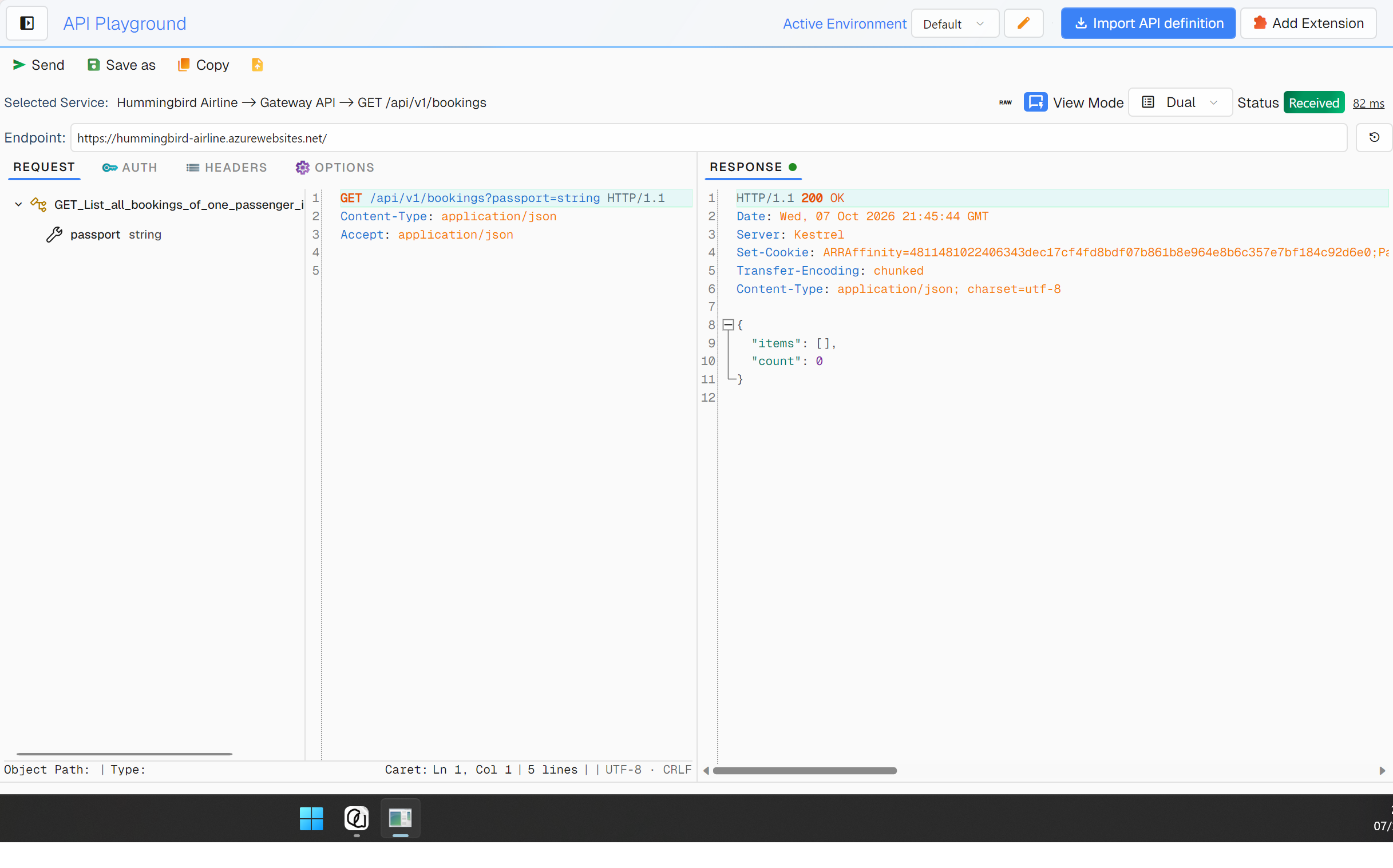
- API Playground → click Import API definition in the toolbar
- Test Automation → click Import API definition in the toolbar
Step 1 — Locate Service Description
Step indicator: dot 1 of 6, labelled Service.
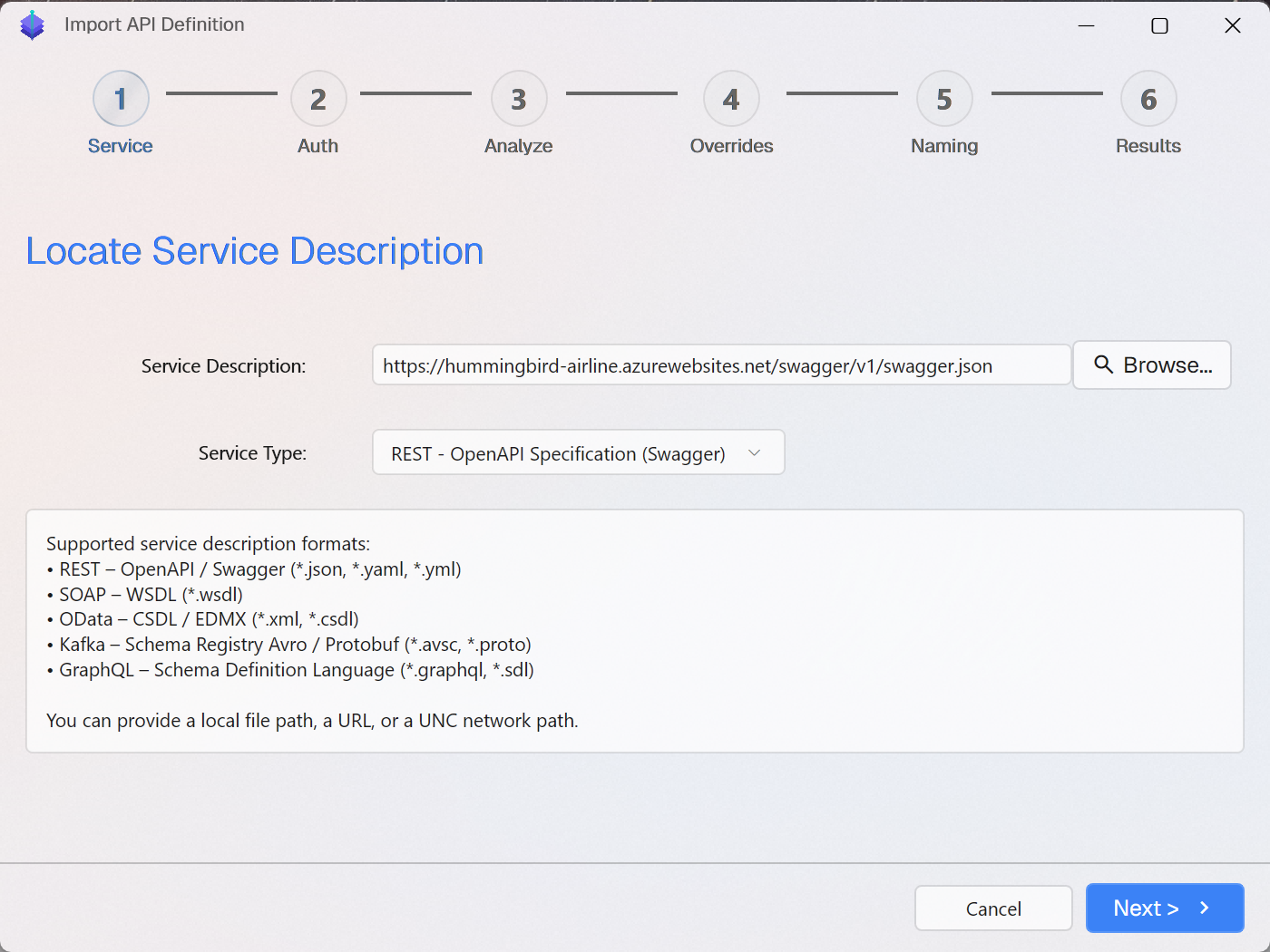
| Field | Description |
|---|---|
| Service Description | Path, URL, or UNC path to the service description file. The field accepts file system paths and HTTP(S) URLs. A host written without a scheme (e.g. api.example.com/openapi.json) is read as https://, rather than as a path relative to your working directory. |
| Service Type | The type of service description. Aethrix auto-detects the type from the file extension and content. You can override it by selecting manually. |
Service Type options:
| Option | When to choose |
|---|---|
REST - OpenAPI Specification (Swagger) | OpenAPI 2.x (Swagger) or 3.x specs in JSON or YAML |
SOAP - WebService Description Language (WSDL) | SOAP 1.1 or 1.2 services described by a .wsdl file |
oData - EDM Common Schema Definition Language (CSDL) | OData v4 metadata endpoints or .edmx / .csdl files (V2/V3 is not supported — see compatibility) |
Kafka - Schema Registry (Avro / JSON Schema / Protobuf) | Confluent-compatible Schema Registries (single .avsc/JSON/Protobuf; .avpr not supported) |
GraphQL - Schema Definition Language (SDL) | GraphQL SDL files or live introspection endpoints |
gRPC - Protobuf Definition (.proto) | gRPC services defined in Protocol Buffers .proto files |
WebSocket - AsyncAPI (3.0) | AsyncAPI 3.0 WebSocket documents (.yaml/.json) |
Click Next > to proceed to Step 2.
Step 2 — Authentication
Step indicator: dot 2 of 6, labelled Auth.
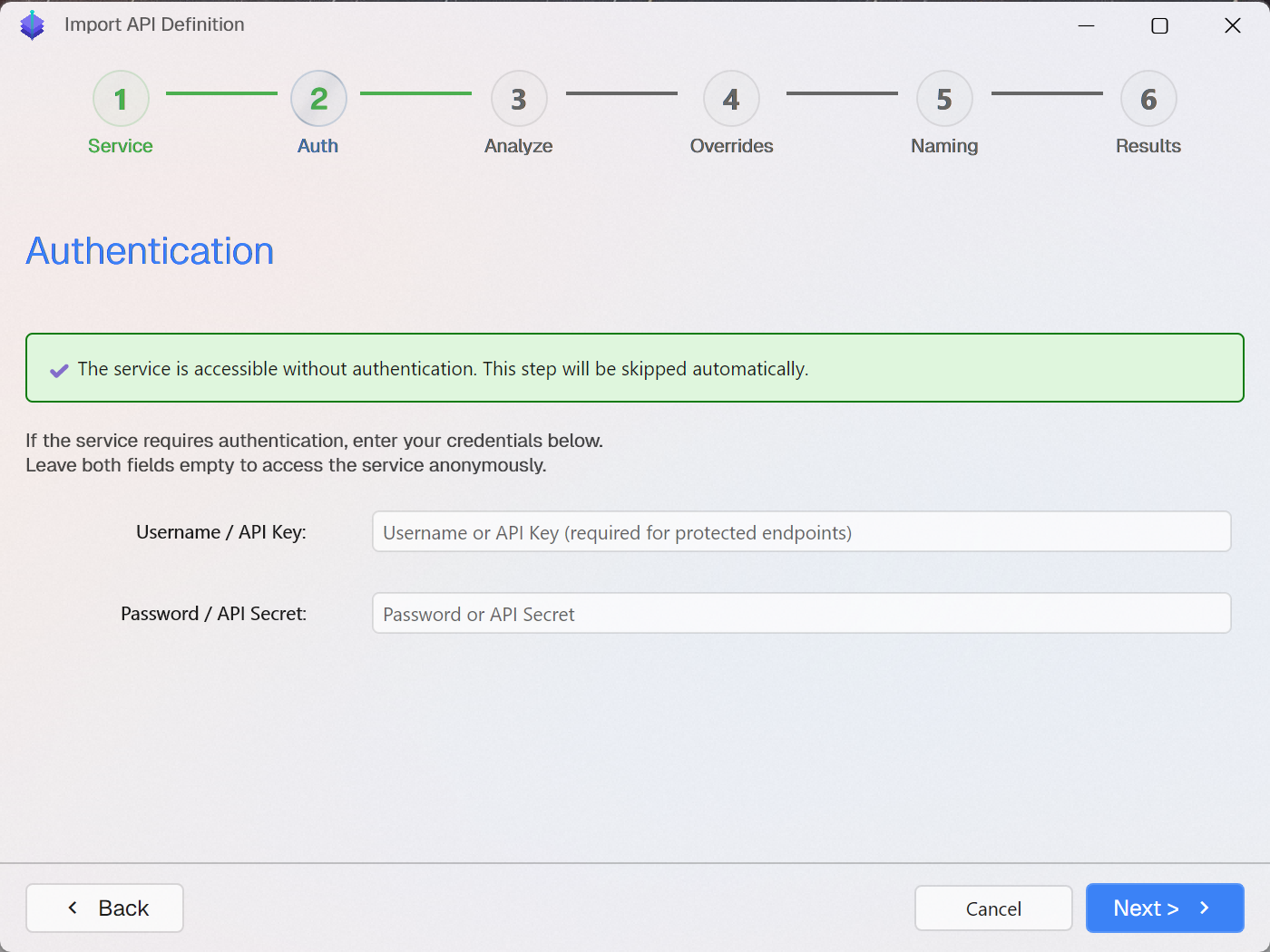
If the service description endpoint requires credentials, enter them here.
| Field | Description |
|---|---|
| Username / API Key | Username, API key, or client ID for authenticating to the endpoint |
| Password / API Secret | Corresponding password, secret, or token |
If no authentication is needed: Leave both fields empty. Aethrix will verify service accessibility. If the endpoint is reachable anonymously, this step is skipped automatically and the following message appears:
✔ The service is accessible without authentication. This step will be skipped automatically.
Click Next > to proceed to Step 3.
Tip: These credentials are used only during the import process to fetch the service description. They are not stored in the workspace.
Step 3 — Analyze
Step indicator: dot 3 of 6, labelled Analyze.
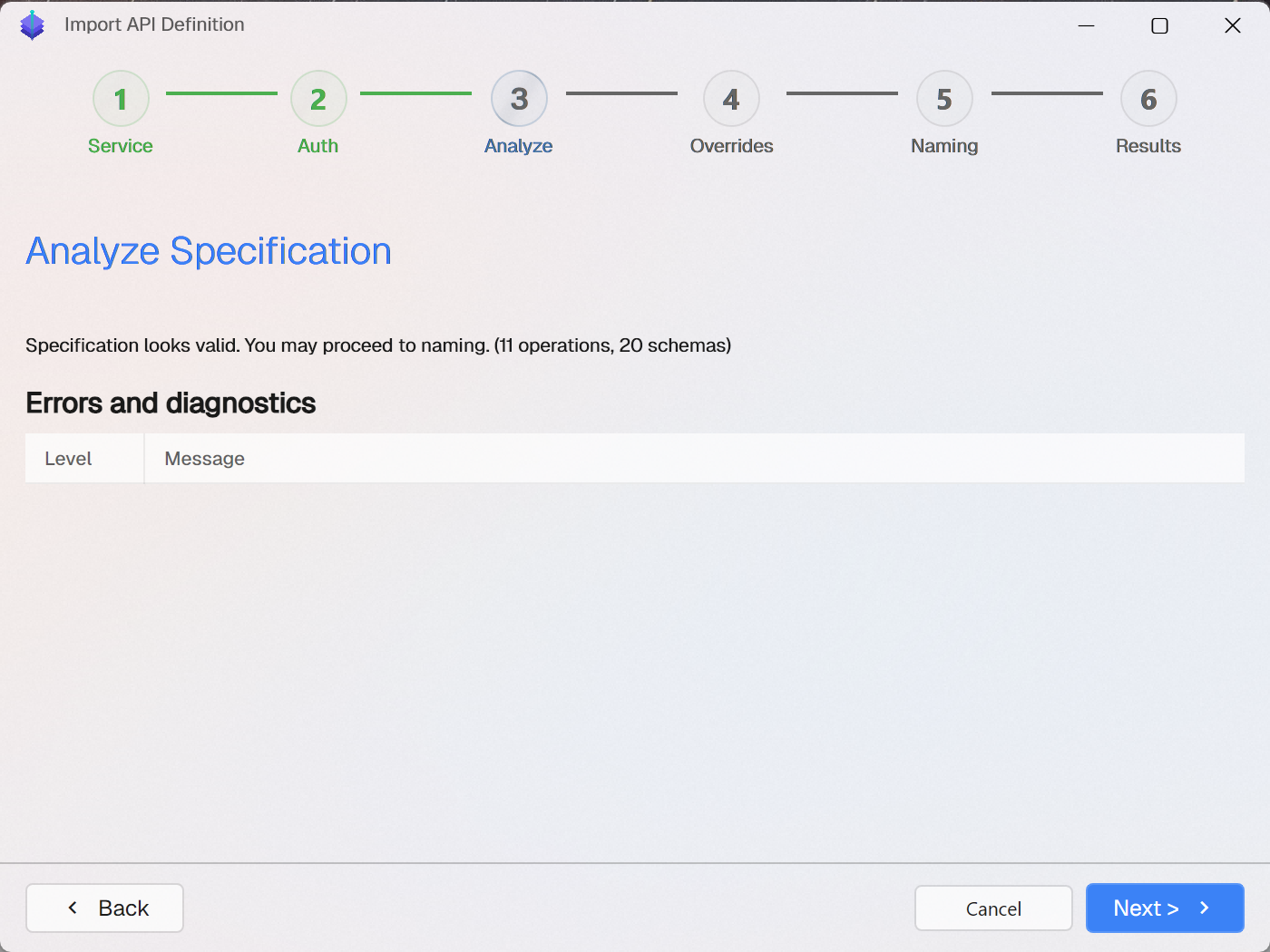
When you click Next > on the Authentication step, Aethrix immediately fetches and analyses the service description — before asking for names. This fail-fast design catches broken specifications early, so you never waste time naming a document that cannot be imported.
While the analysis runs, the step shows Analyzing, please wait…. When it completes, a summary banner reports the outcome:
| Banner | Meaning | Next > button |
|---|---|---|
| Green — "Specification looks valid. You may proceed to naming." | Analysis succeeded. An inventory of what was found (operations, schemas/models, …) is appended in parentheses. Warnings, if any, are listed below and do not block the import. | Enabled |
| Red — "Specification has errors. Please fix the spec or review diagnostics before importing." | The document cannot be imported (parse failure, unresolved references, …). All errors are listed below with their codes and locations in your file. | Disabled until errors are fixed |
Diagnostics shown here use the same grid and error codes as the Results step — see Import Diagnostics & Error Codes for the full reference.
Tip: Fix the reported issues in your specification, then click Next > again to re-run the analysis on the updated document.
Step 4 — Discriminator Overrides
Step indicator: dot 4 of 6, labelled Overrides.
Polymorphic request/response bodies whose specification declares no discriminator cannot be
dispatched from the wire payload alone — nothing in the JSON selects the variant. When Aethrix
detects such unions in your specification, this step lists each of them with the variant schemas
and the values it inferred for every variant (from the variant's own declared enum, or from its
schema name).
| Field | Meaning |
|---|---|
| Union | The schema (or inline body) that declares the oneOf/anyOf with no discriminator. |
| Discriminator property | The JSON property that selects the variant on the wire — inferred as type; change it if your server uses a different field (e.g. kty for JWK-style payloads). |
| Variant / Wire value | Each variant schema and the value that selects it on the wire. |
Correct any value your server actually sends — a payload carrying a value that matches no variant stays as raw JSON. Everything you leave unchanged keeps the inferred default, so accepting the step as-is is always safe.
Note: the step appears only for OpenAPI specifications that contain undiscriminated unions; it is skipped automatically otherwise. A union whose variants each declare a required property no other variant requires needs no override — Aethrix dispatches those by payload presence automatically (
OAS_DISC_004).
Step 5 — Application & Service Name
Step indicator: dot 5 of 6, labelled Naming.
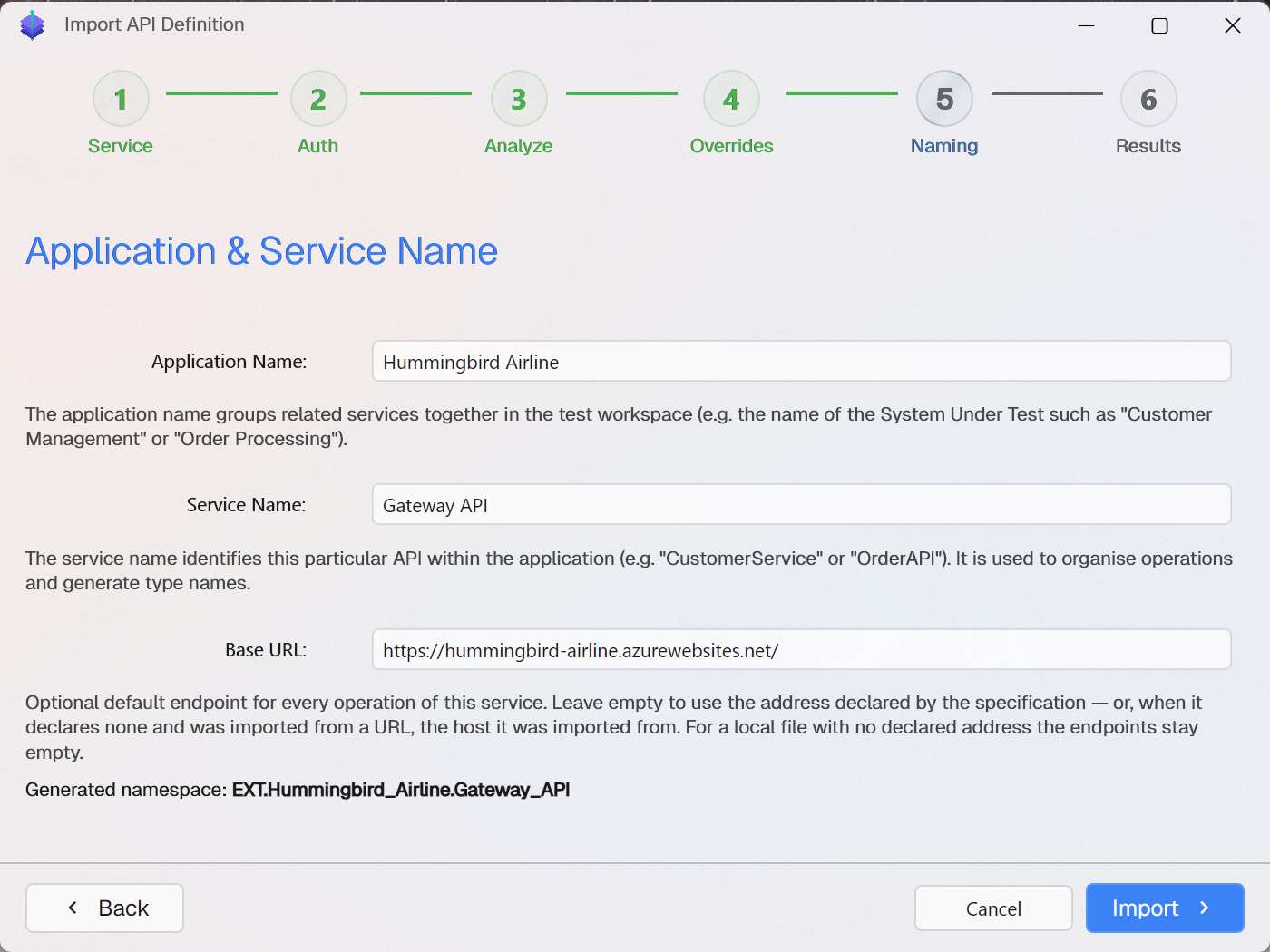
Aethrix organizes services into two levels: Application (representing a system or product, e.g. Hummingbird Airline) and Service (the API itself within that application, e.g. Gateway API).
| Field | Description |
|---|---|
| Application Name | Groups related services together in the test workspace. Use the name of the System Under Test (SUT), e.g., Customer Management or Order Processing. |
| Service Name | Identifies this particular API within the application, e.g., CustomerService or OrderAPI. This name is used to organise operations in the service tree and to generate C# type names. |
| Base URL | Optional default endpoint that every operation of the imported service targets. See below. |
The two name fields are auto-suggested based on the service description. You can edit them freely.
Base URL: the field comes pre-filled with what the import would use anyway, so you only touch it when the guess is wrong:
| Specification | Pre-filled Base URL |
|---|---|
Declares servers | The first declared server, e.g. https://api.example.com/v3 for a specification that names that host |
No servers, imported from a URL | The host the specification was fetched from — scheme and host only; the specification's own path (e.g. /swagger/v1/swagger.json) is not part of the API |
No servers, local file or UNC path | Nothing — the import proceeds with empty endpoints |
When the specification declares several servers, all of them are listed as buttons under the field — click one to use it. A typed address overrides the declared servers, and the field shows a warning (without blocking the import) when the value is not an absolute http(s) URL. A URL-imported specification with no declared servers reports OAS_BASE_002 in the results log; see Import Diagnostics.
Generated namespace: A read-only preview below the fields shows the C# namespace that will be generated (e.g. MyApp.MyAPI) — it updates as you type.
Duplicate warnings: The step validates your choices against the workspace and warns in place when:
| Warning | Meaning |
|---|---|
| An application named "X" already exists… | An application with the same name (ignoring case/spacing) exists — select it from the list to import into it rather than creating a duplicate. |
| Very similar to the existing application "X" | Your name is close to an existing one and may cause routing conflicts. |
| A service named "X" already exists in this application. Importing will overwrite it. | Importing will replace the existing service of that name. |
| Very similar to the existing service "X" | Your name is close to an existing service in this application. |
Beyond those, the step also checks provenance — where the specification you are importing came from versus where the installed service came from:
| Situation | What happens |
|---|---|
| Same names, already imported from the same source | Treated as a version refresh: the field tells you it will replace your previous import (and how many operations it had). The import proceeds without a question, because bringing the latest version of your API is the ordinary case. |
| Same names, generated from a different or unknown source | The field warns that importing under these names will delete the existing service, and a confirmation is required before anything is deleted. Declining stops the import. |
| Same or similar specification installed under other names | The import is allowed and a note tells you it looks like a copy of something you already have, so you can pick a distinct name if both should coexist. |
Warnings do not block the import, but review them to avoid accidentally overwriting or shadowing existing services.
Clicking Import runs one more check: if your names would replace a package generated from a different specification, a confirmation is shown first — nothing is deleted until you agree.
Step 6 — Import Progress
Step indicator: dot 6 of 6, labelled Results.
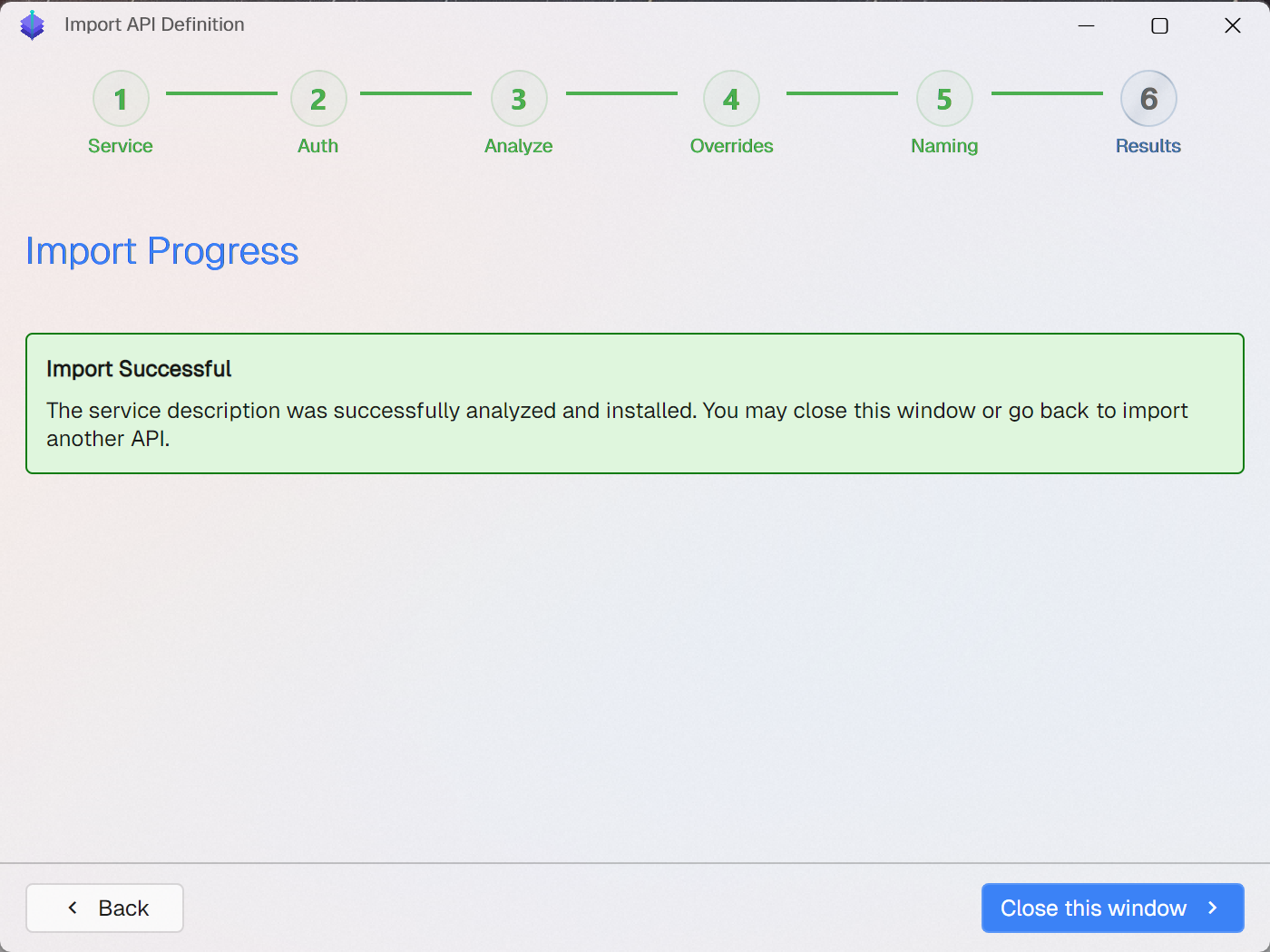
Aethrix Studio analyses the service description, generates typed DTOs and operation metadata, compiles the extension assembly, and installs it in your workspace.
Outcomes
| Outcome | Message | What to do |
|---|---|---|
| Import Successful | The service description was successfully analyzed and installed. You may close this window or go back to import another API. | Click Close this window — the API is now available in the service tree. |
| Import Successful with Warnings | The service description was imported with warnings… | Review the Diagnostics grid. The API is installed but some operations or types may need manual attention. |
| Import Failed | Shown in the Diagnostics grid | See Troubleshooting below. If the problem looks like an Aethrix bug, click Export diagnostics… to create a support bundle and report the issue. |
Diagnostics Grid
The Errors and diagnostics grid displays every message from the analysis, code generation, and compilation phases:
| Column | Description |
|---|---|
| Level | Icon: Information, Warning, or Error |
| Message | Detailed description prefixed with a stable error code (e.g. OAS_REF_001, CS0234), followed by the location in your specification — a JSON Pointer such as #/paths/~1pets/get and/or (Ln 42, Col 7) — whenever Aethrix can pinpoint it |
Messages are selectable so you can copy them into your issue tracker. For the complete list of error codes and their meaning, see Import Diagnostics & Error Codes.
Troubleshooting
| Problem | Cause | Solution |
|---|---|---|
| Cannot reach URL | Network issue, authentication required, or invalid URL | Check the URL, try in a browser. Use the username/password fields if the endpoint is protected. |
OAS_FMT_001 / OAS_FMT_002 (invalid format) | Malformed specification file | Validate with Swagger Editor or an XML validator; fix the syntax at the reported line/column. |
OAS_REF_001 / OAS_REF_002 / OAS_REF_003 (unresolved $ref) | Referenced schema missing from components/schemas, or points to an external file/URL that is not loaded | Define the schema or fix the $ref target. External references are not followed — inline them instead. |
Warnings about unsupported features (OAS_SEC_001, OAS_SCH_001, OAS_NOT_001, …) | Vendor extensions or advanced spec features Aethrix simplifies | Review warnings in the Diagnostics grid. Most warnings are non-blocking. Contact the API owner if critical operations are missing. |
Compilation errors (CS0234, CS0102, CS0542, …) | The generated C# failed to compile — usually an Aethrix generator bug triggered by a spec construct | Click Export diagnostics… and report the bundle; as a workaround try renaming the offending schema or property in the spec. See Import Diagnostics & Error Codes. |
The full error-code reference — every OAS_xxxx code with severity, meaning, and recommended action — lives in Import Diagnostics & Error Codes.
Importing via CLI
You can also generate an API extension package from the command line without opening Studio:
aeth analyze <service-description> \
  --type <type> \
  --app-name "<AppName>" \
  --service-name "<ServiceName>" \
  --namespace <Namespace> \
  [--output <dir>] \
  [--export-report <dir>]
If the import fails, add --export-report <dir> to write a support bundle (support-bundle-<timestamp>.zip) containing the diagnostics, logs, compilation errors, and — optionally — the specification and generated code. The bundle review dialog in Studio lists its exact contents; credentials are always redacted. See Import Diagnostics & Error Codes for details.
Example — OpenAPI:
aeth analyze https://api.example.com/swagger.json \
  --type OpenAPI \
  --app-name "My App" \
  --service-name "MyAPI" \
  --namespace MyApp.MyAPI \
  --output ./extensions
Example — WSDL:
aeth analyze ./CustomerService.wsdl \
  --type WSDL \
  --app-name "CRM" \
  --service-name "CustomerService" \
  --namespace CRM.CustomerService
See the full CLI Reference: analyze for all options.
After Import
Once the API is imported, it appears in the service tree under <Application Name> → <Service Name> → operations.
- API Playground: Select an operation to open a pre-filled request editor.
- Test Automation: Add a Send Request step and select the imported operation from the drop-down.